> ## Documentation Index
> Fetch the complete documentation index at: https://docs.withflex.com/llms.txt
> Use this file to discover all available pages before exploring further.
# Flex Shopify Payments App Installation
> Follow the steps below to connect your Shopify store to Flex.
Follow the steps below to connect your Shopify store to Flex.
This guide assumes you've already [created your Flex account and added your payout information](/developer-guides/onboarding). Complete that first if you haven't.
## Installation guide
In the Flex dashboard, navigate to **Settings → Integrations → Shopify**.
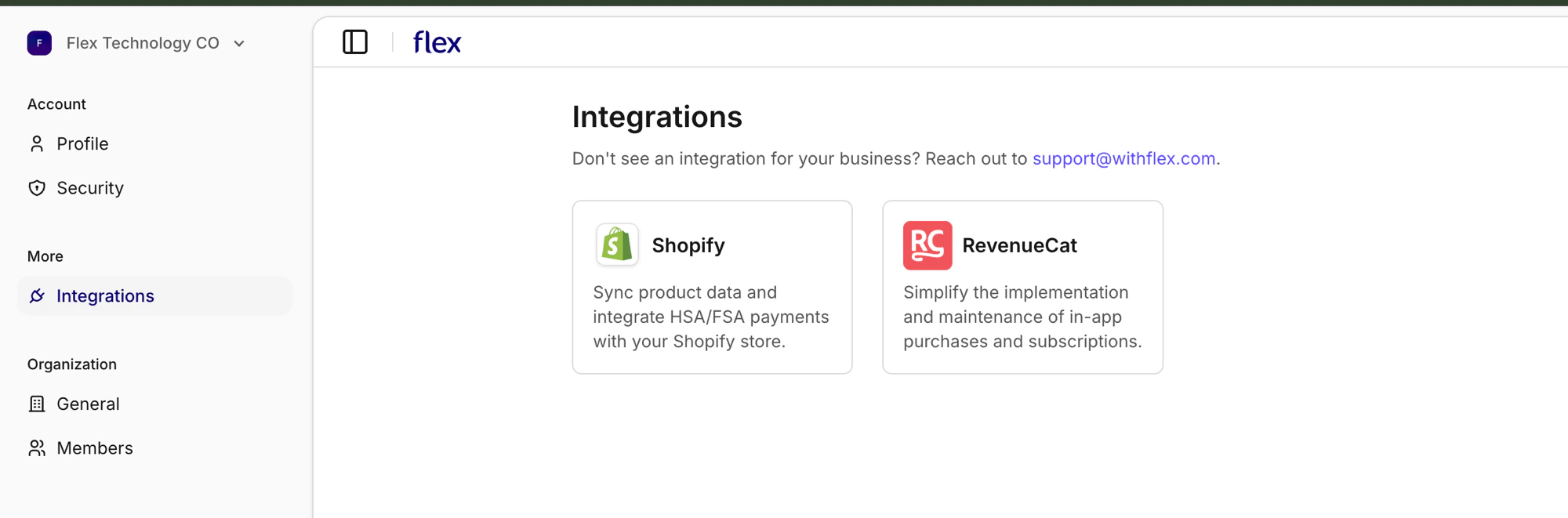 Enter your Shopify store subdomain (e.g., `your-store` for `your-store.myshopify.com`) and click **Connect**.
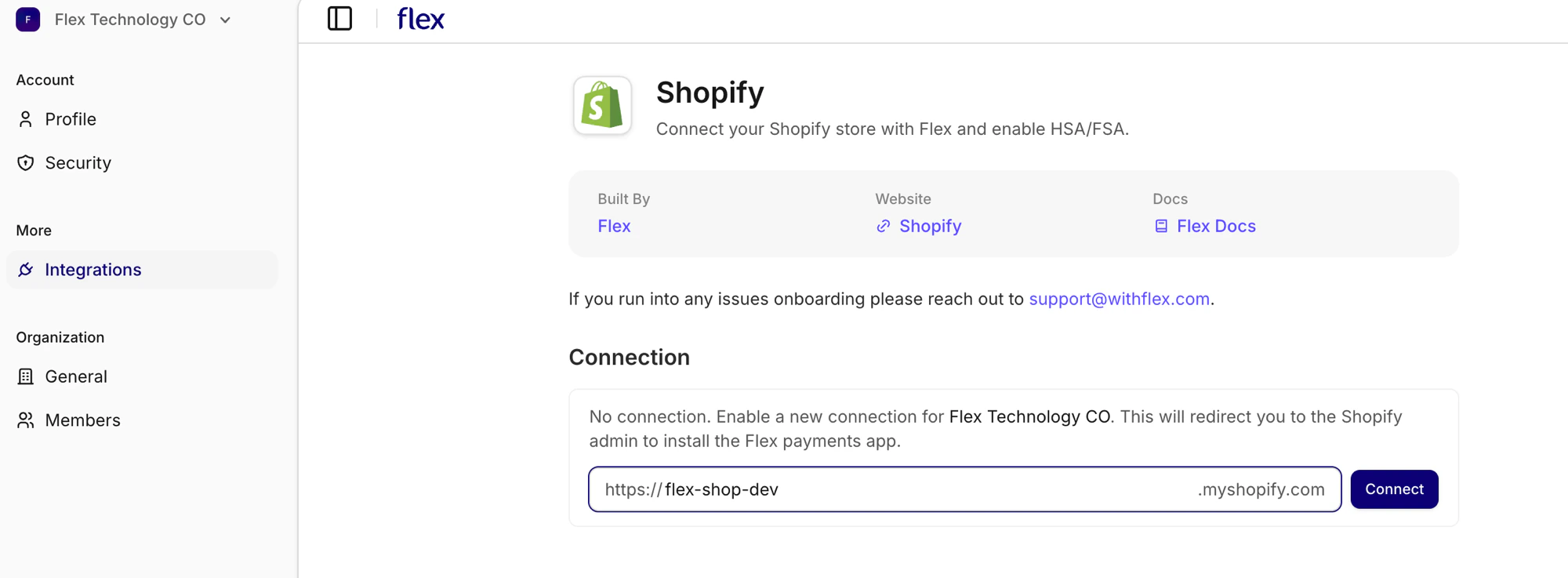 You'll be redirected to Shopify Admin to approve the Flex app's permissions.
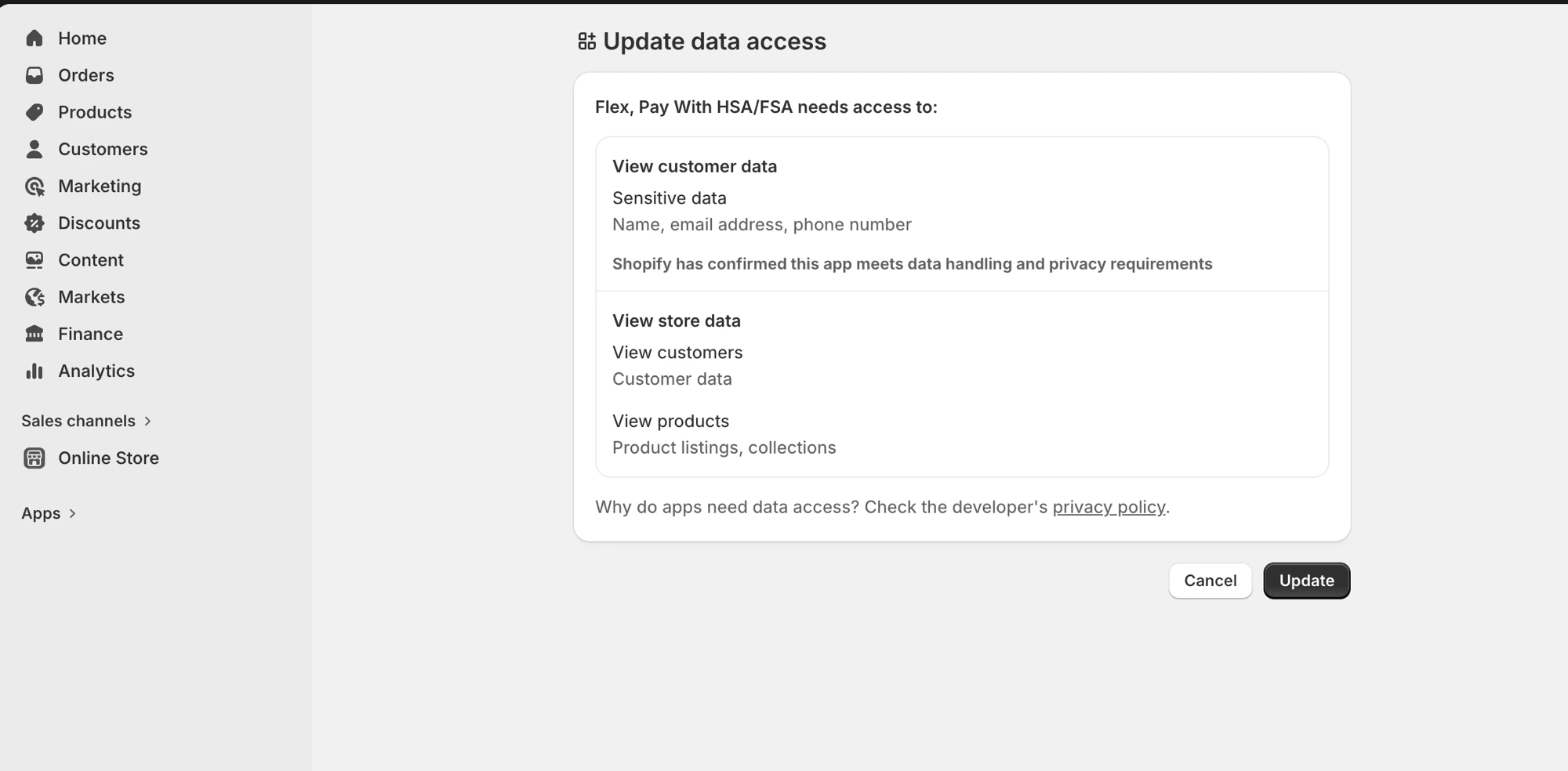 Once approved, Shopify sends you back to Flex. The pixel installs automatically and product sync begins.
Product sync can take several minutes or longer depending on the number of products in your store. You can leave the page — sync continues in the background and the dashboard updates when it's done.
Once approved, Shopify sends you back to Flex. The pixel installs automatically and product sync begins.
Product sync can take several minutes or longer depending on the number of products in your store. You can leave the page — sync continues in the background and the dashboard updates when it's done.
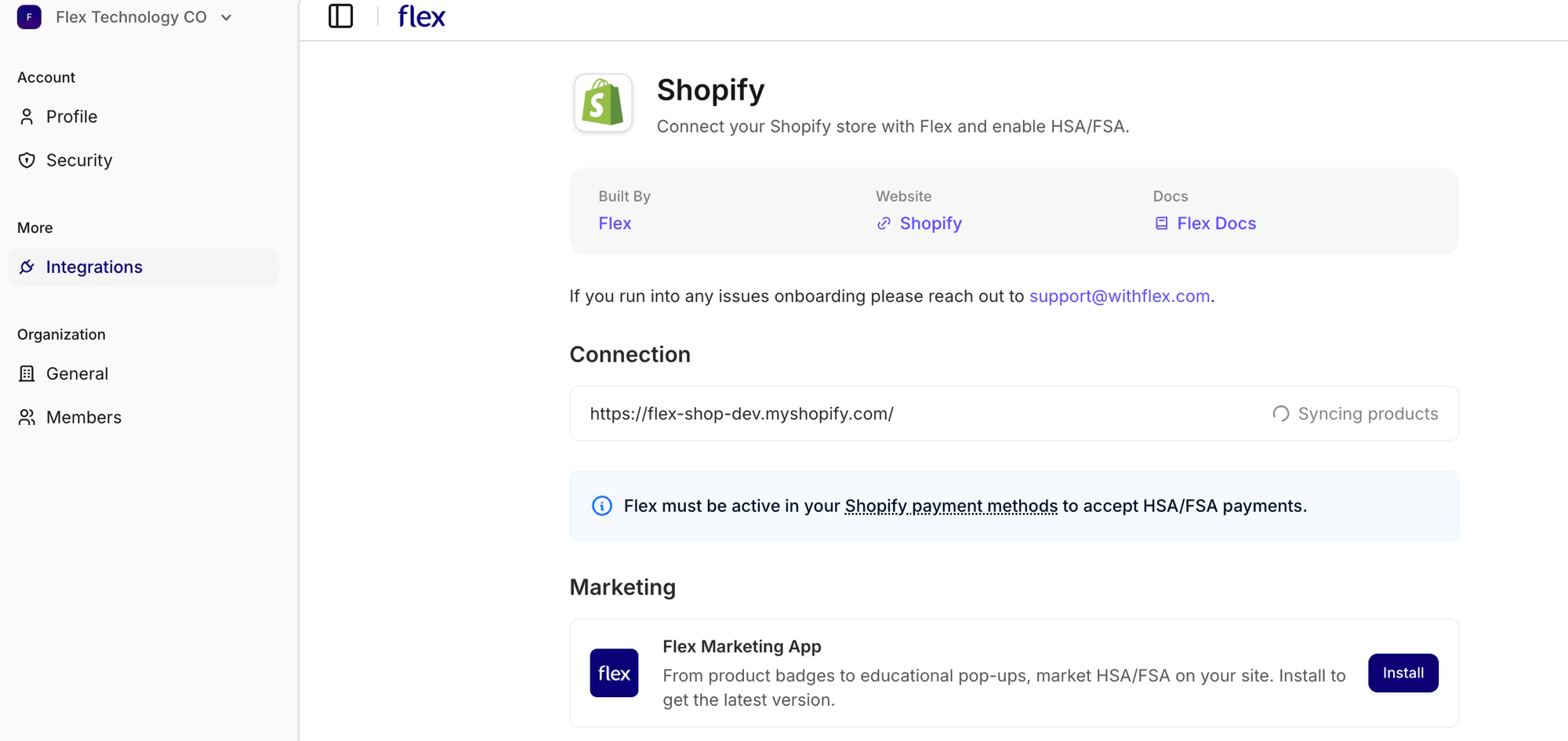 When sync completes, your store shows as Connected and is ready to use.
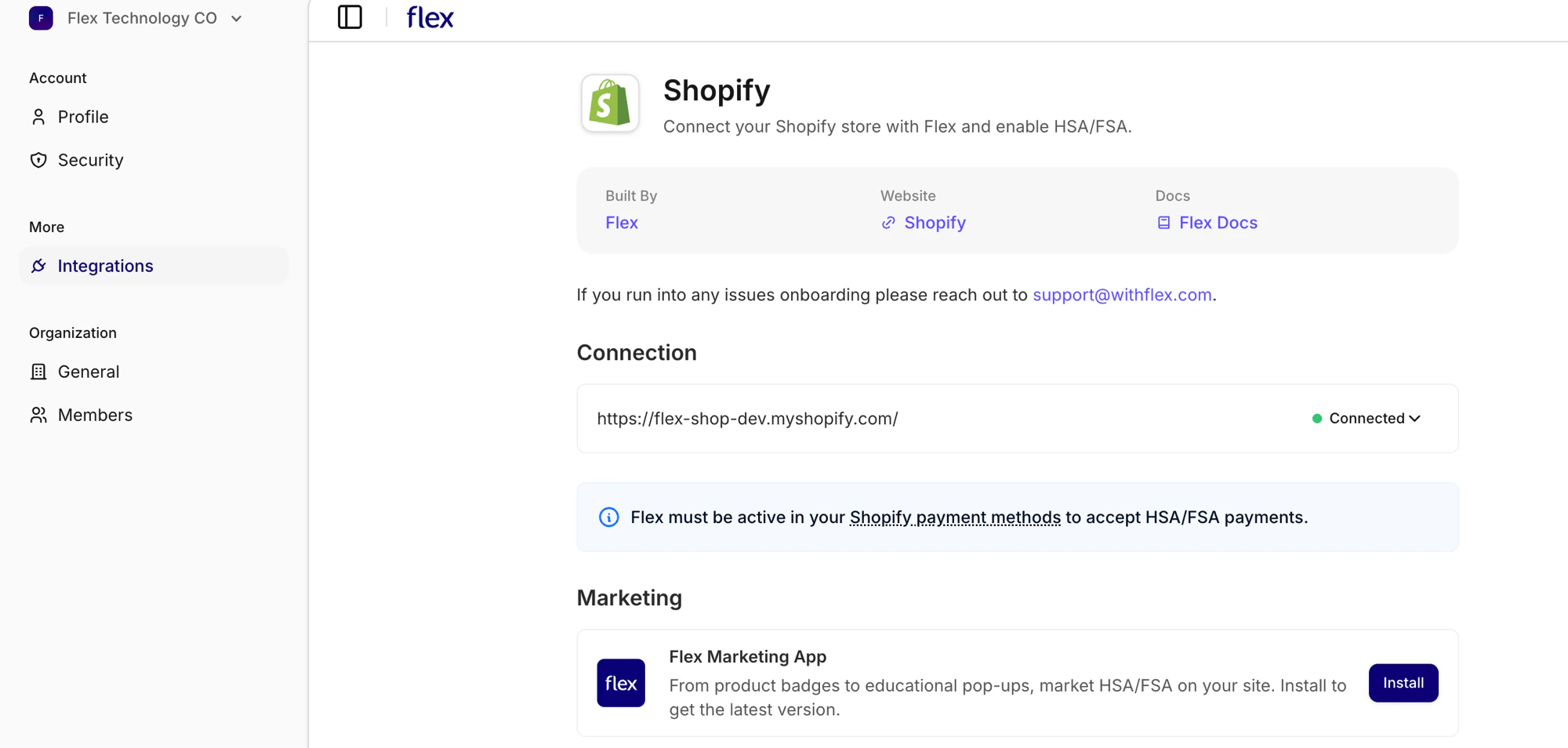 If the **Connect** button doesn't open Shopify Admin, see [Installing manually from the Shopify App Store](#installing-manually-from-the-shopify-app-store) below.
Flex syncs the products from your Shopify Store and creates a corresponding product in Flex. We also configure a webhook that listens for any product changes on your Shopify store.
Once synced, Flex will automatically determine HSA/FSA eligibility for all products using an intelligent multi-stage pipeline and categorize products into the following eligibility types:
| Type | Description |
| ----------------------------- | ------------------------------------------------------------------------------------------------------ |
| `auto_substantiation` | Product is automatically eligible (found in eligible product databases or verified as medical product) |
| `letter_of_medical_necessity` | Product may be eligible with a letter from a medical professional |
| `prescription` | Prescription-required items |
| `vision` | Vision correction products |
| `not_eligible` | Product is not HSA/FSA eligible |
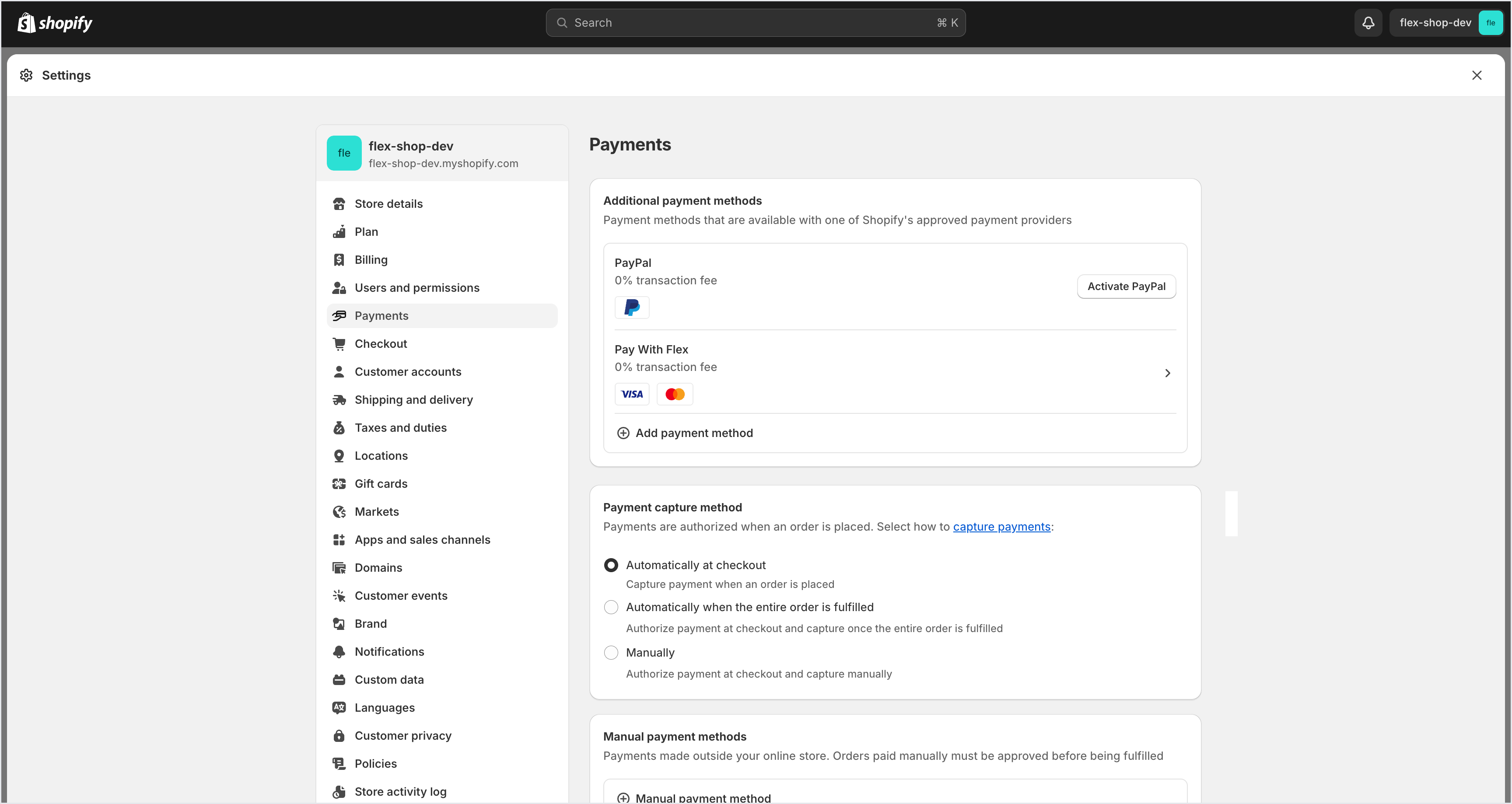
In Shopify Admin, navigate to **Settings → Payments** and verify that "Pay with Flex" is set to 'Active'.
If the **Connect** button doesn't open Shopify Admin, see [Installing manually from the Shopify App Store](#installing-manually-from-the-shopify-app-store) below.
Flex syncs the products from your Shopify Store and creates a corresponding product in Flex. We also configure a webhook that listens for any product changes on your Shopify store.
Once synced, Flex will automatically determine HSA/FSA eligibility for all products using an intelligent multi-stage pipeline and categorize products into the following eligibility types:
| Type | Description |
| ----------------------------- | ------------------------------------------------------------------------------------------------------ |
| `auto_substantiation` | Product is automatically eligible (found in eligible product databases or verified as medical product) |
| `letter_of_medical_necessity` | Product may be eligible with a letter from a medical professional |
| `prescription` | Prescription-required items |
| `vision` | Vision correction products |
| `not_eligible` | Product is not HSA/FSA eligible |
In Shopify Admin, navigate to **Settings → Payments** and verify that "Pay with Flex" is set to 'Active'.
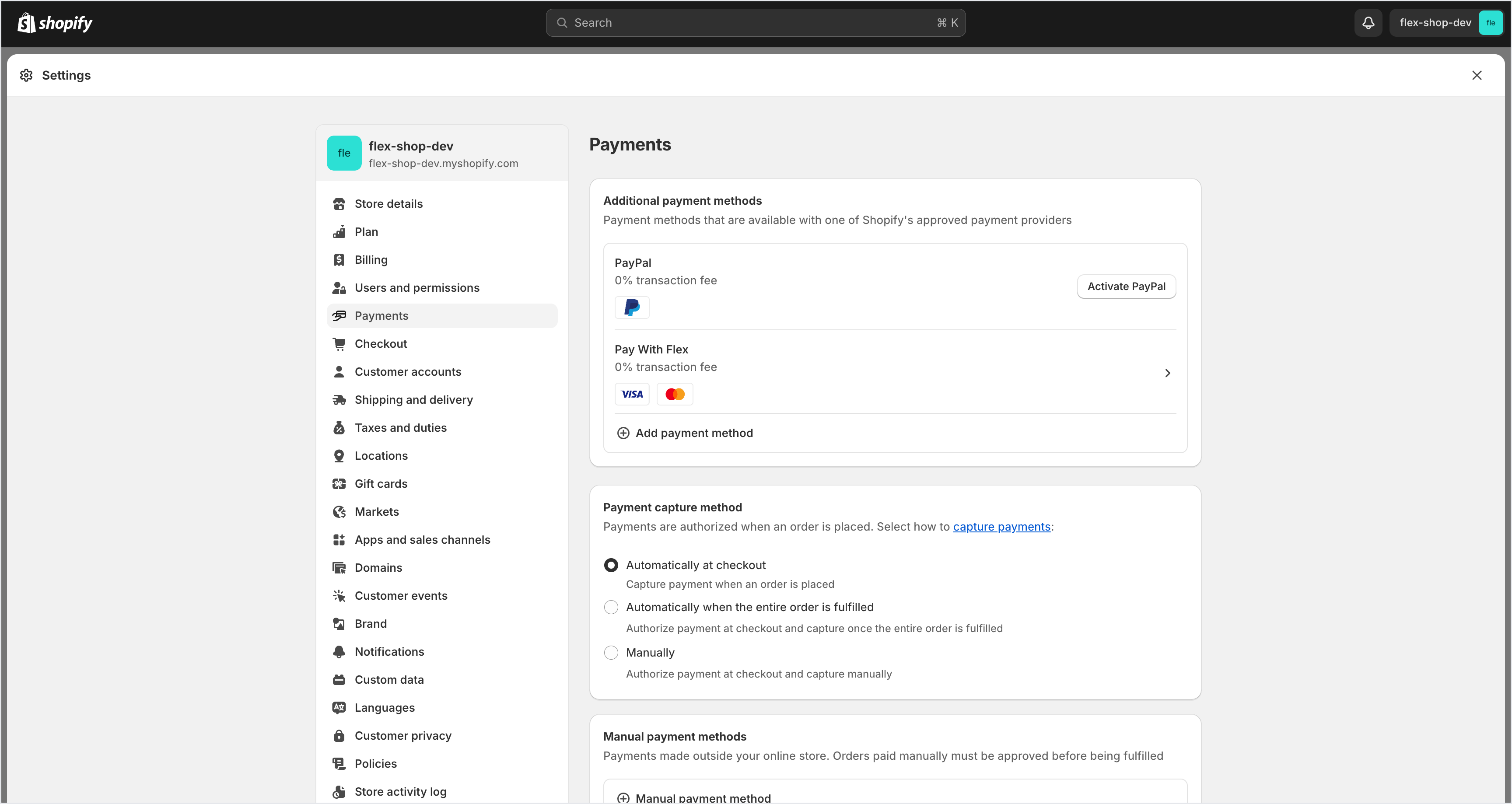 If you do not see "Pay with Flex," select **Add payment method** and search for Flex.
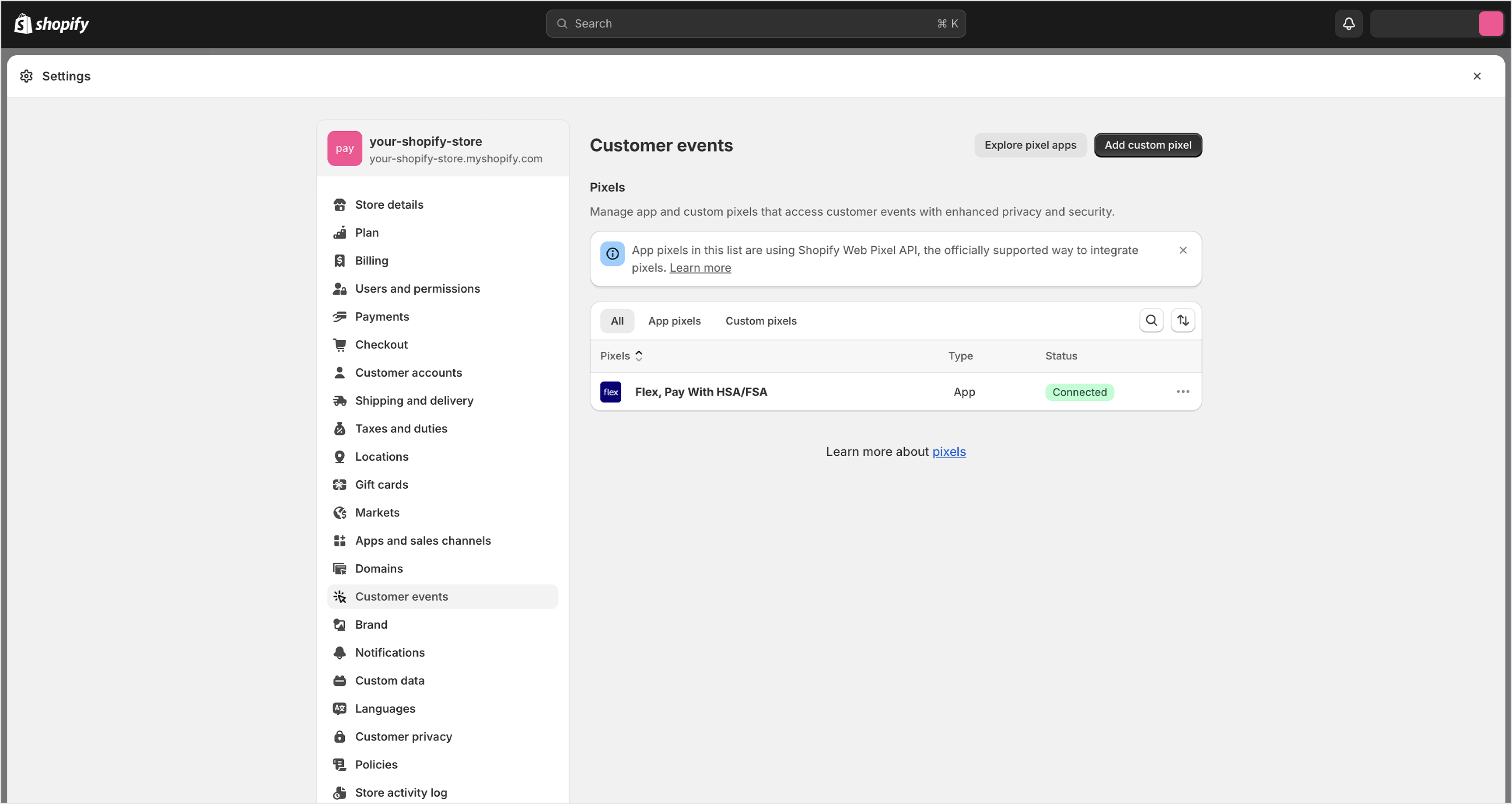
 Navigate to Settings and select **Customer Events** to verify the Flex Pixel status is 'Connected'.
 Verify the checkout is working by adding a product to the cart and selecting 'Pay with HSA/FSA' at checkout. You should be redirected to the Flex Checkout to enter payment details.
You have successfully installed the Flex Shopify Payments App and enabled Flex Shopify Payments on your store.
## Installing manually from the Shopify App Store
If the **Connect** button in step 1 doesn't open Shopify Admin, or you run into errors during the automatic install, you can install the Flex app directly from the Shopify App Store.
Navigate to the [Flex Shopify Payments App listing](https://apps.shopify.com/flex-shop-pay) and click **Install**.
Verify the checkout is working by adding a product to the cart and selecting 'Pay with HSA/FSA' at checkout. You should be redirected to the Flex Checkout to enter payment details.
You have successfully installed the Flex Shopify Payments App and enabled Flex Shopify Payments on your store.
## Installing manually from the Shopify App Store
If the **Connect** button in step 1 doesn't open Shopify Admin, or you run into errors during the automatic install, you can install the Flex app directly from the Shopify App Store.
Navigate to the [Flex Shopify Payments App listing](https://apps.shopify.com/flex-shop-pay) and click **Install**.
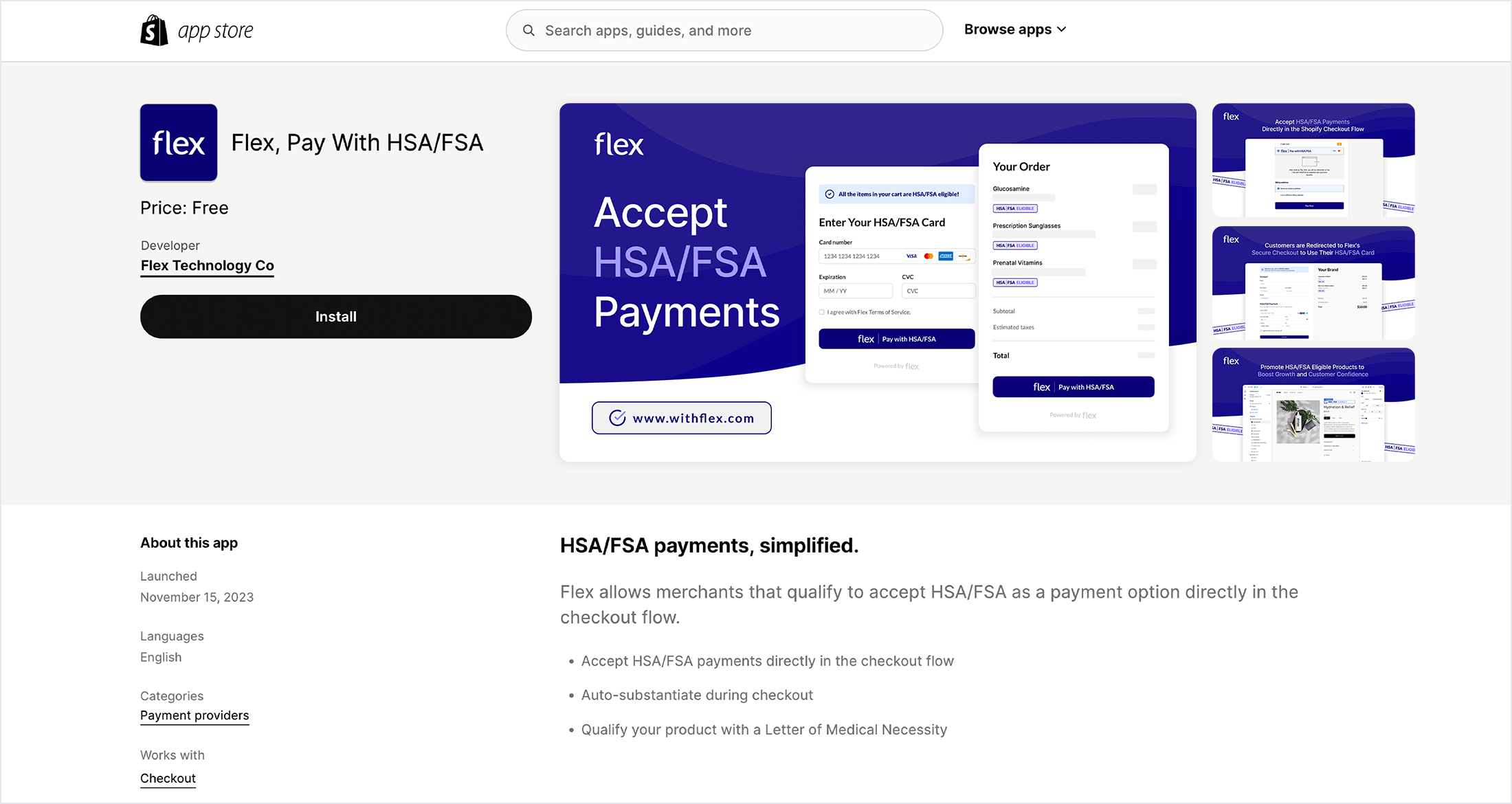 Approve the requested permissions when prompted.
After install completes, you should be automatically redirected to the Flex dashboard at **Settings → Integrations → Shopify**. Your store should now appear as Connected. Product sync will start automatically.
If you still don't see your store as Connected after a manual install, contact [support@withflex.com](mailto:support@withflex.com).
Promote HSA/FSA across your storefront with dynamic badges, a prebuilt landing page, and product eligibility synced from Flex.
Approve the requested permissions when prompted.
After install completes, you should be automatically redirected to the Flex dashboard at **Settings → Integrations → Shopify**. Your store should now appear as Connected. Product sync will start automatically.
If you still don't see your store as Connected after a manual install, contact [support@withflex.com](mailto:support@withflex.com).
Promote HSA/FSA across your storefront with dynamic badges, a prebuilt landing page, and product eligibility synced from Flex.