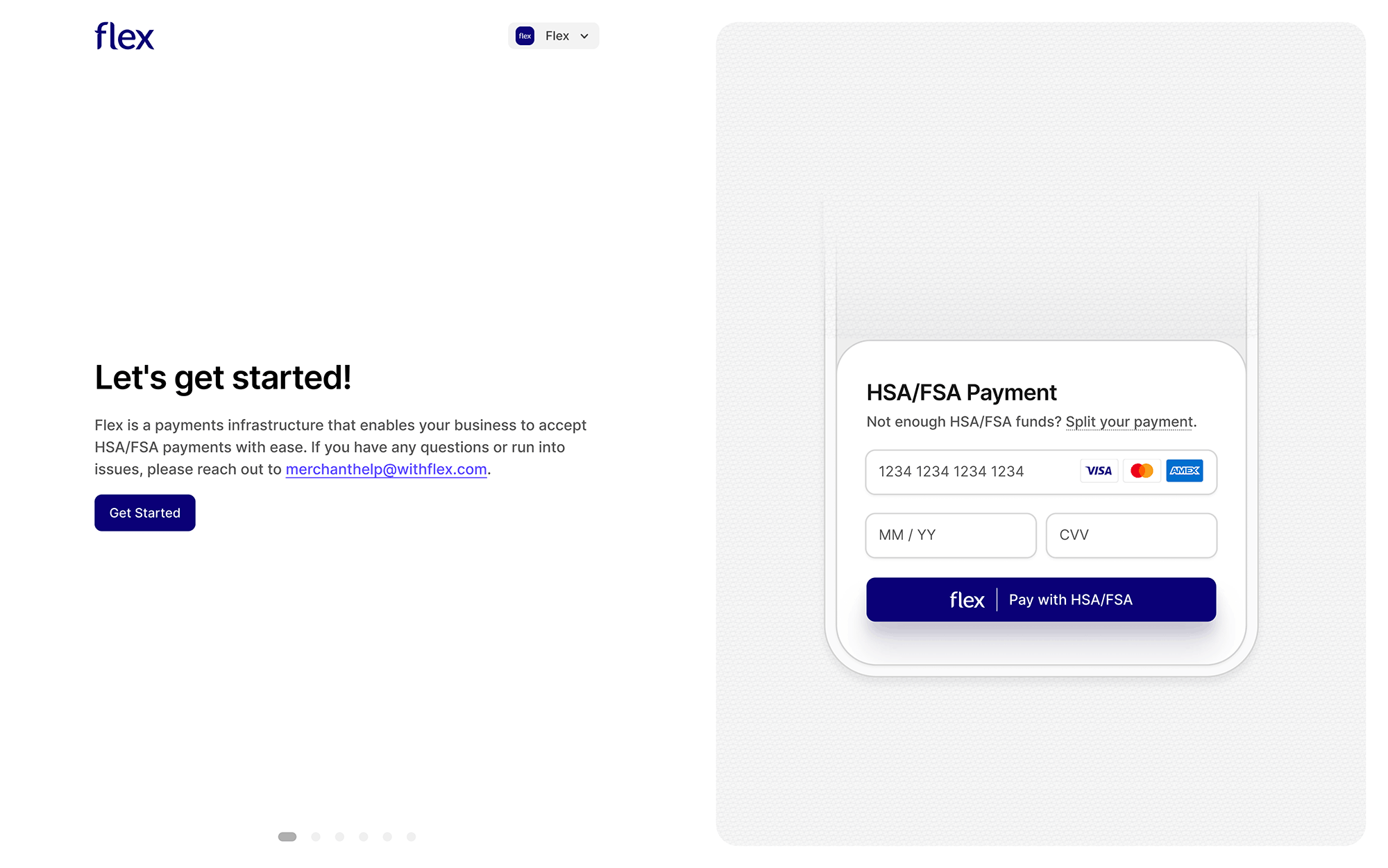
If you don’t have a Flex account yet, please contact our team. Once you’ve received your onboarding email, click the link in the email to access the Flex Dashboard. Then follow the steps below to complete your setup. After onboarding is complete, you’ll be able to access your dashboard and start accepting HSA/FSA payments.

Onboarding instructions

Important: If someone else will be completing onboarding, invite them to your organization in Step 2 before they sign in. They’ll receive an invitation to join your account and can continue the onboarding process.
1

Click to get started

Open your onboarding email and click the Get Started button to access the Flex Dashboard and begin onboarding.Flex onboarding email with a Get Started button
2

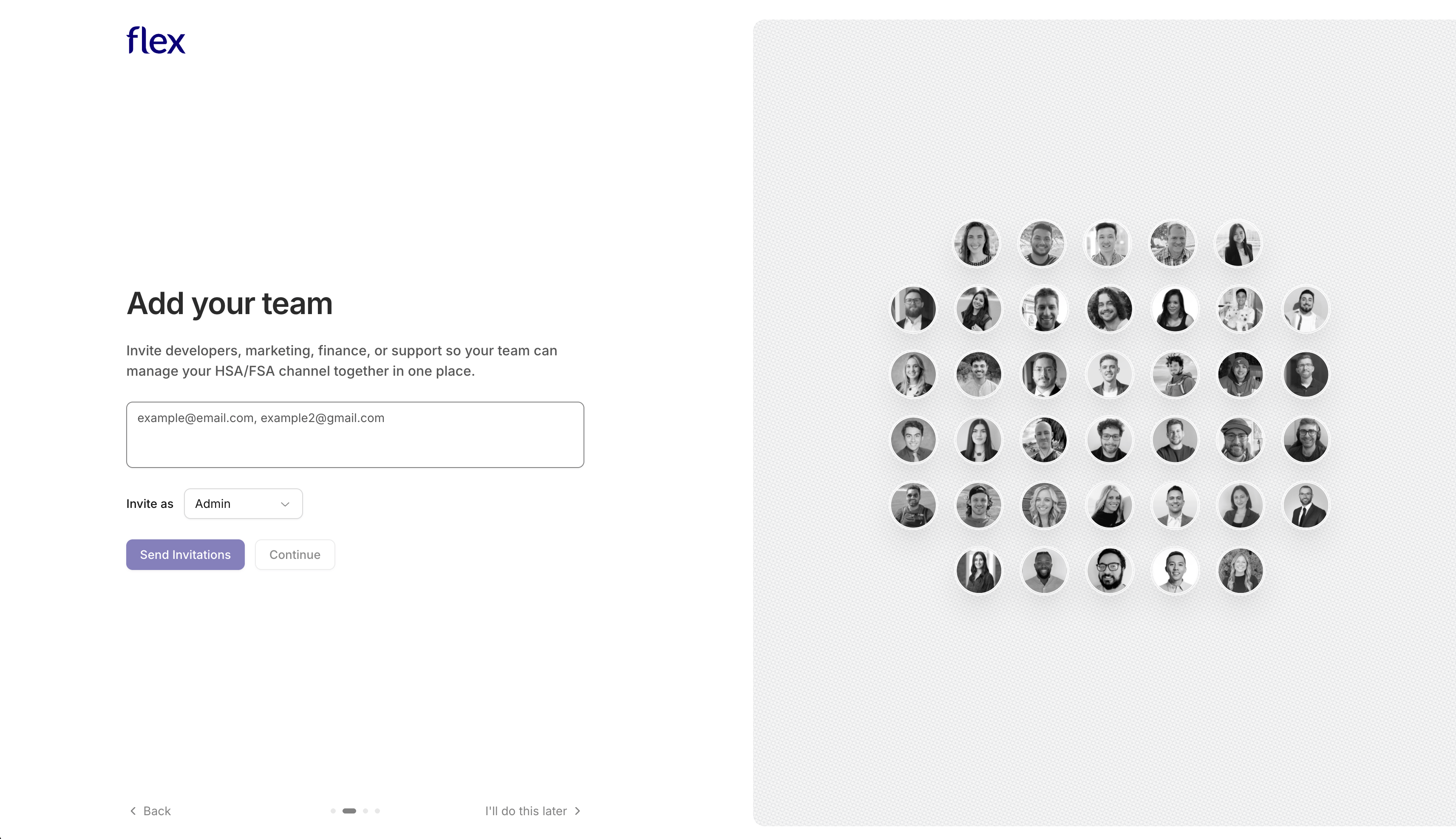
Invite your teammates

Enter one or more teammate email addresses, select a role under Invite as, and click Send Invitations. Then click Continue, or select I’ll do this later to skip this step.Add your team screen with fields for teammate email addresses, an Invite as role selector, and a Send Invitations button
3

Connect payouts

Connecting payouts is required and can’t be skipped — it’s the one onboarding step without an I’ll do this later option. Your Stripe account must be verified before you can accept HSA/FSA payments.
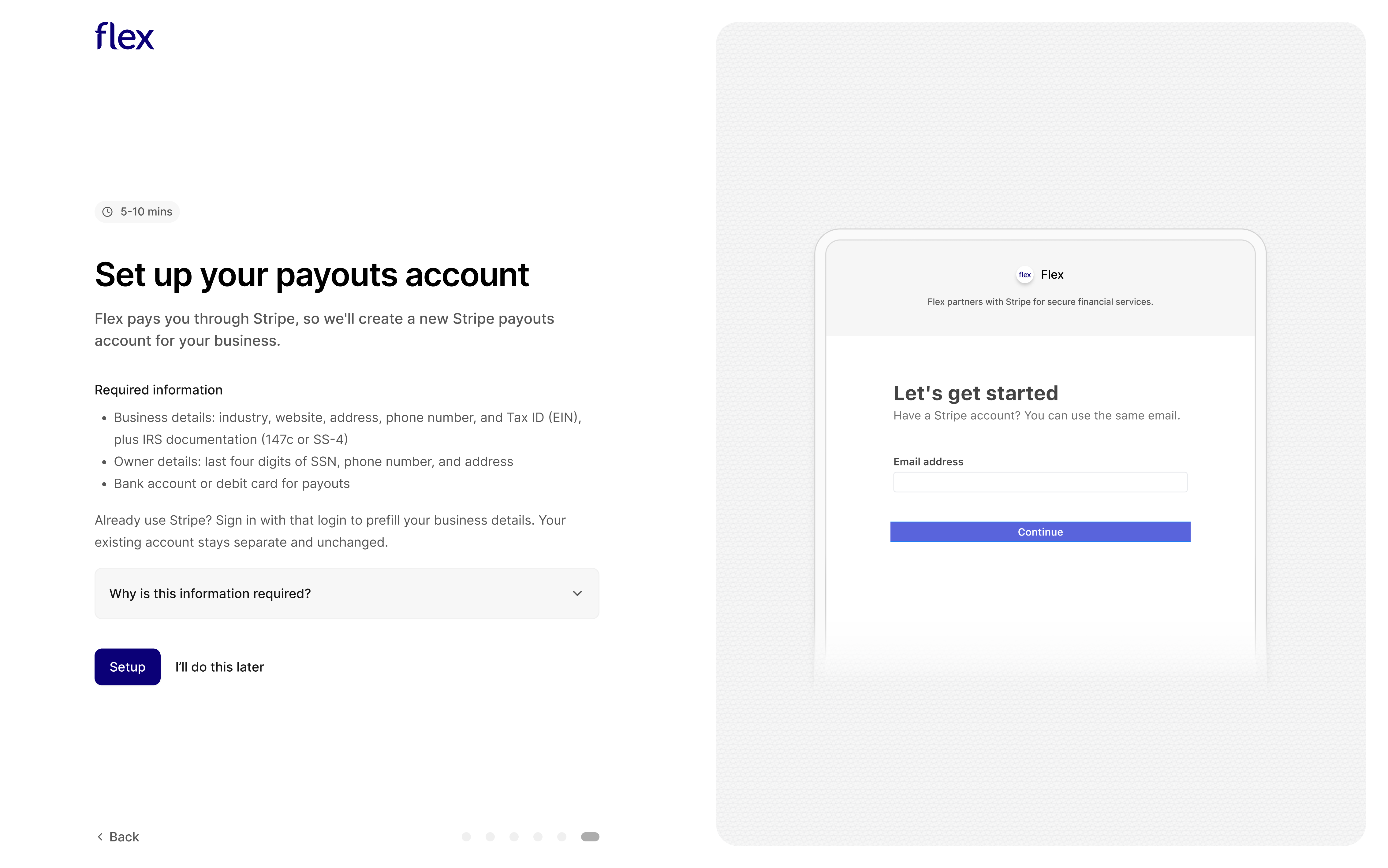
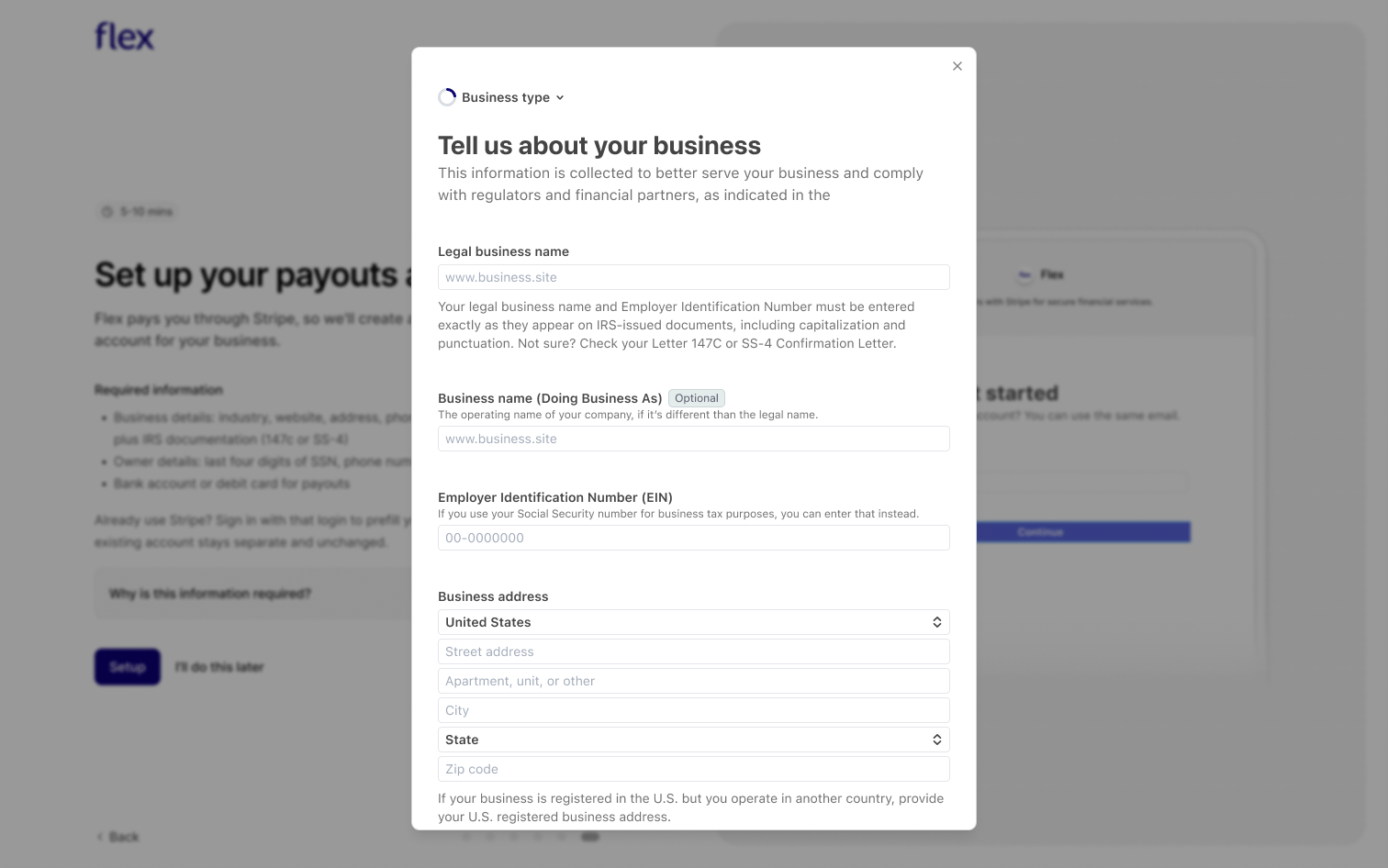
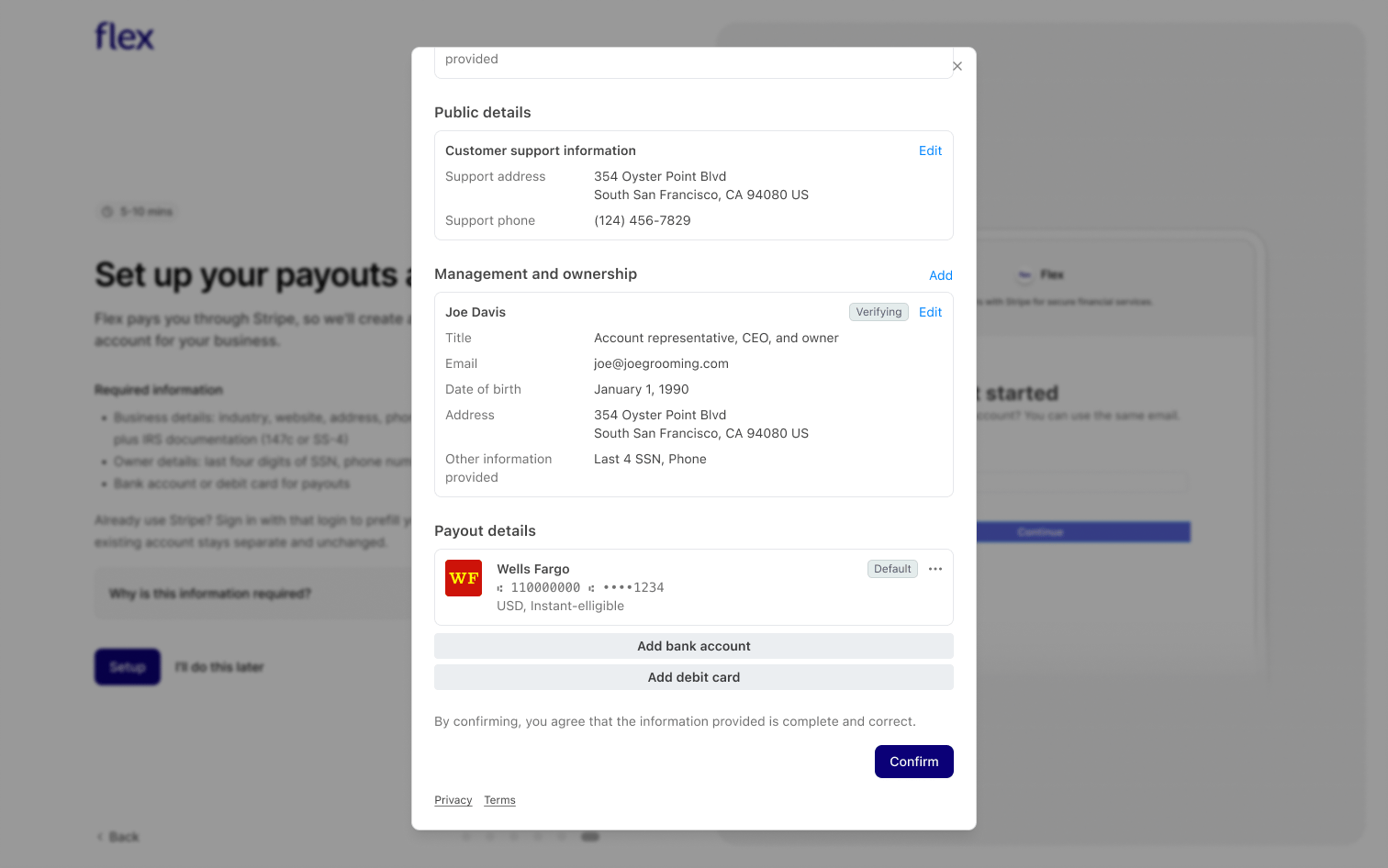
Have your business details, owner information, and a bank account or debit card ready, then click Connect Account to open the Stripe onboarding popup.Flex uses Stripe to facilitate payouts. You may be required to provide Stripe with personal and business information. Your details are entered directly into Stripe and are used to verify your identity to meet applicable identity-verification requirements.Flex payouts step showing a Connect Account button that opens the Stripe onboarding popupFill out your payout information. Log into Stripe (or create an account) and provide your business, owner, and payout details.Stripe onboarding form for entering business, owner, and payout detailsReview and confirm. Add a bank account or debit card for payouts, check that everything is correct, and click Confirm.Stripe review screen for adding a bank account or debit card and confirming payout details
4

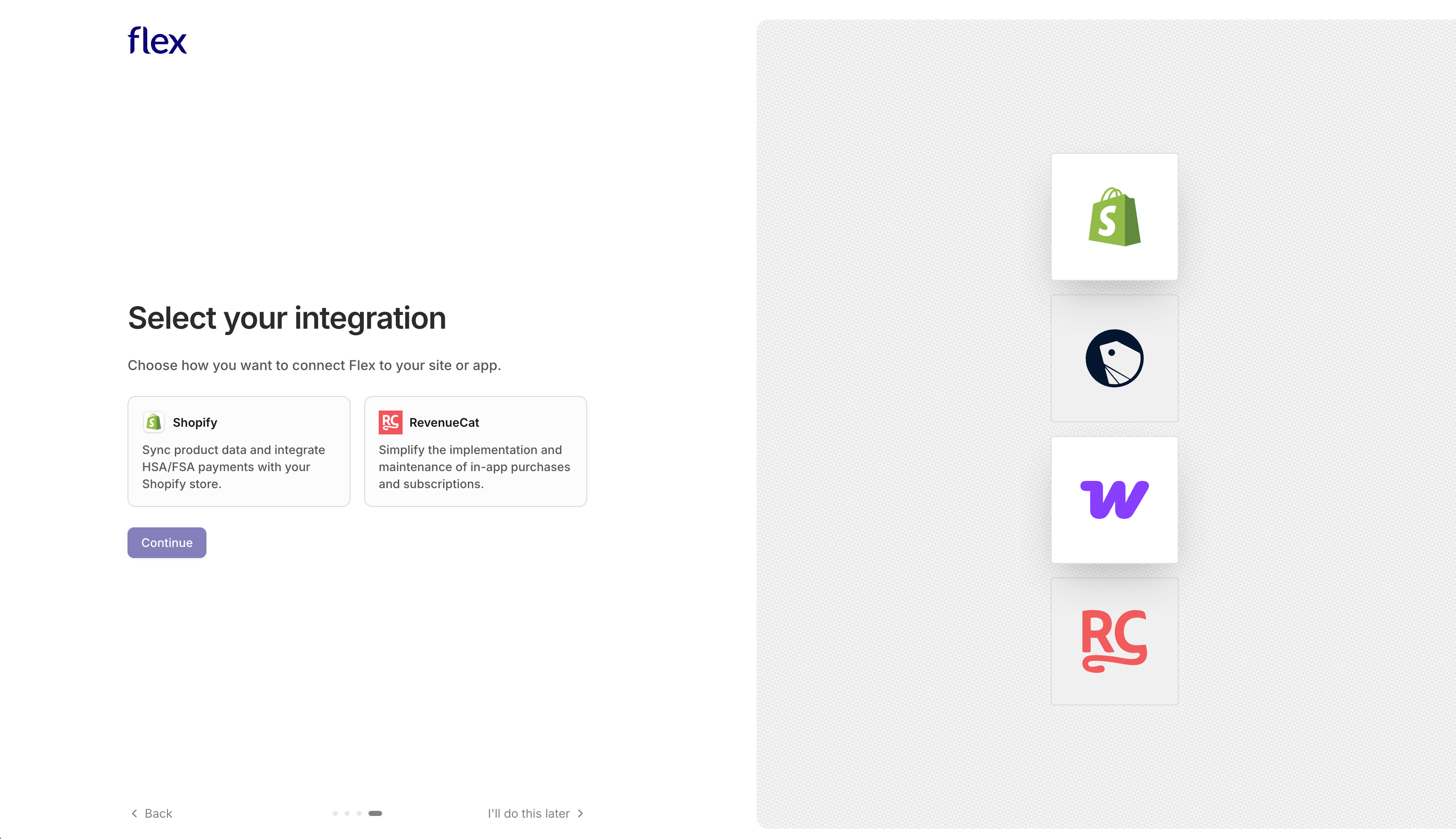
Select your integration

Select an integration and click Continue to start its setup, or select I’ll do this later to finish onboarding and connect one later from the dashboard.
Building a custom integration with the Flex API? Select I’ll do this later to skip this step.
Flex integration selection screen with available integration options and a Continue button
Connect your store and sync products — follow the Shopify Installation guide.
You’re all set! From here, follow the guide for your chosen integration to sync or create products and prices and start accepting HSA/FSA payments.