Shopify Plus required: Shopify checkout blocks are only available to merchants on Shopify Plus.
The Flex Extensions app includes two checkout blocks that help customers recognize eligible products and find Flex when choosing how to pay. Both blocks automatically display based on your products’ HSA/FSA eligibility, so customers see relevant messaging without any manual updates or custom code. If you’ve already installed the Flex Extensions app, there’s nothing else to install. You can add both blocks directly through Shopify’s checkout editor.

Getting started

Watch this walkthrough to learn how to add both checkout blocks and help customers find Flex within Shop Pay.

Jump to a section

Cart eligibility badge

HSA/FSA payment card

Add the blocks to checkout

HSA/FSA payments in Shop Pay


Cart eligibility badge

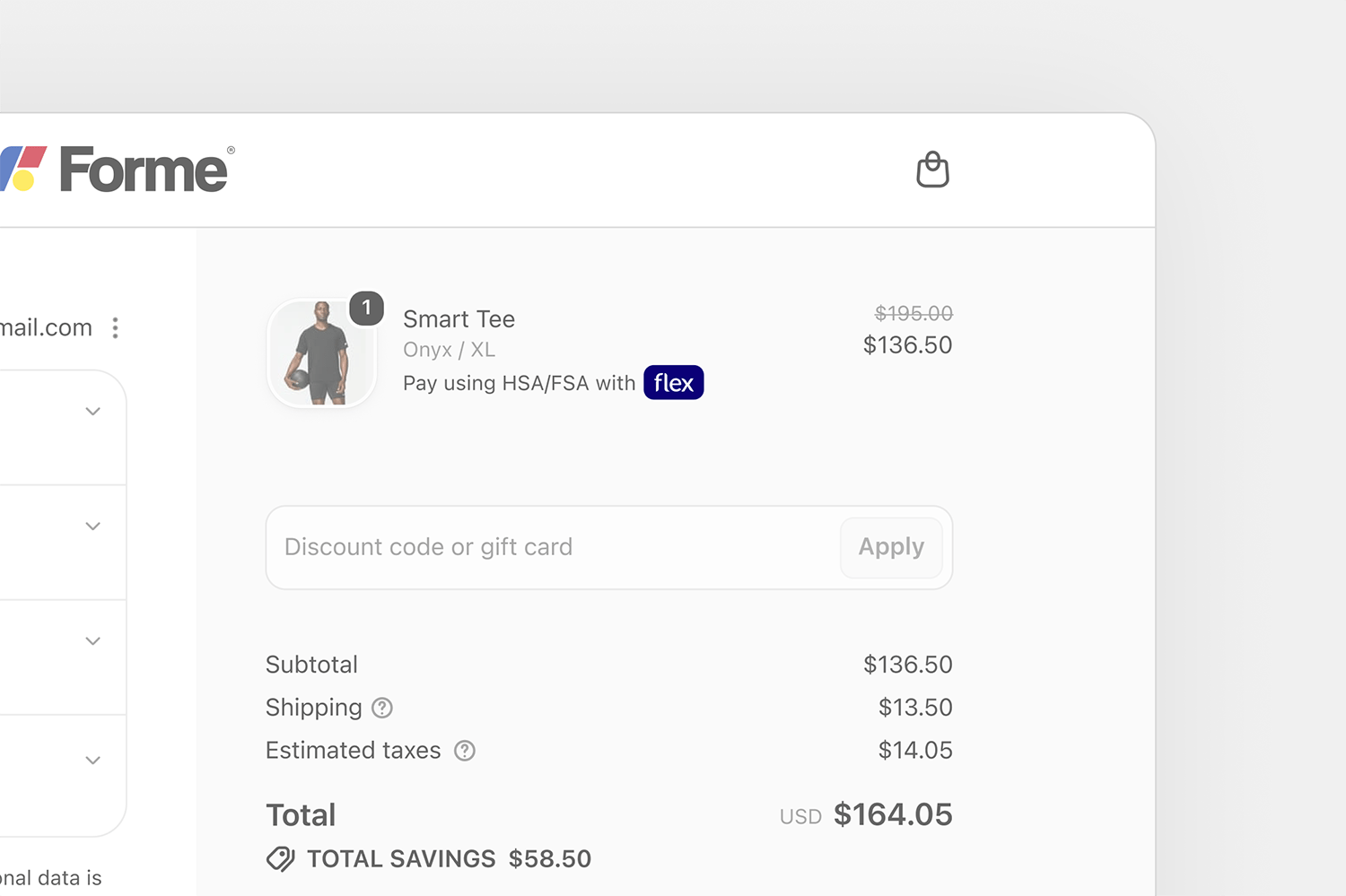
Show customers which products in their cart are HSA/FSA eligible. The cart eligibility badge appears below eligible products in the checkout order summary. It matches the Flex product page badge, creating a consistent HSA/FSA experience from product discovery through checkout.
  • Dynamic eligibility: Automatically displays for products classified as IIAS or LMN.
  • Product-specific: Only appears on eligible products, even when a cart contains both eligible and ineligible items.
  • Consistent messaging: Matches the Flex badge on your product pages, helping customers recognize eligible products throughout their shopping journey.
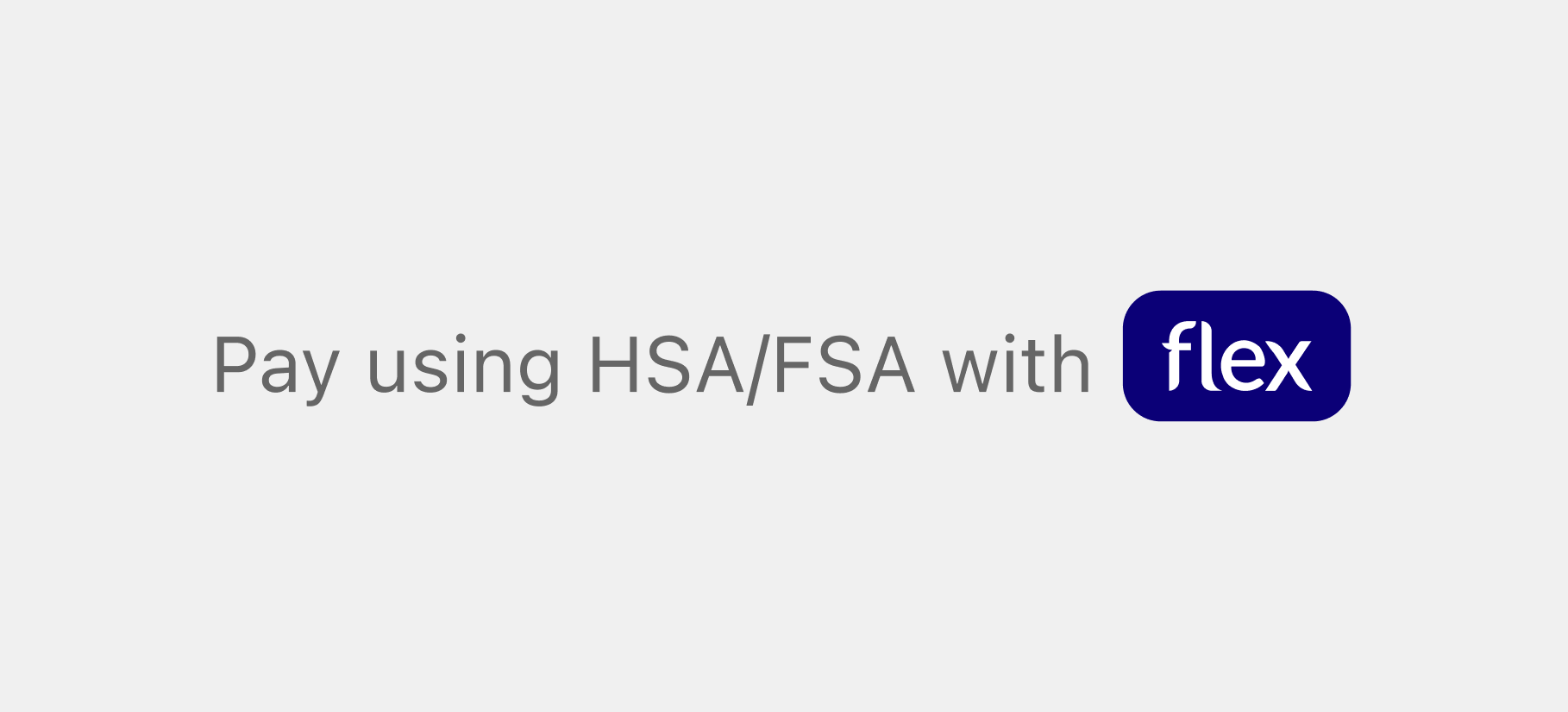
The badge uses the HSA/FSA eligibility metafield synced by the Flex Extensions app. Learn more about Eligibility & Collections. Block:
Flex cart eligibility badge
Example:
Cart eligibility badge displayed below an eligible product in Shopify checkout

HSA/FSA payment card

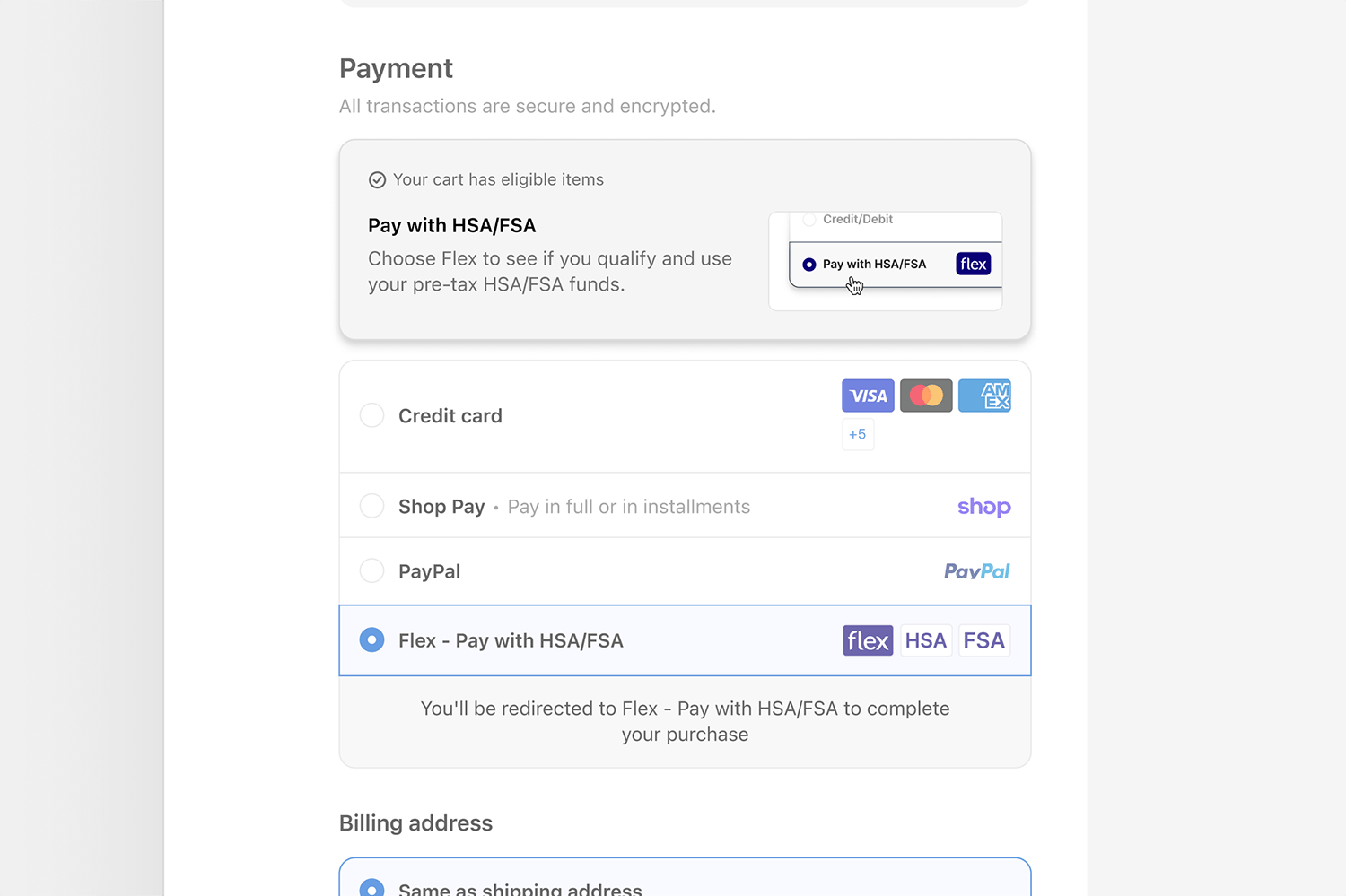
Help customers find Flex when selecting a payment method. The HSA/FSA payment card appears above the payment methods in Shopify checkout. It makes it easier for customers to recognize that they can pay with their HSA/FSA benefits.
  • Dynamic eligibility: Automatically displays when the cart contains at least one IIAS or LMN product.
  • Relevant messaging: Stays hidden when the cart contains only ineligible products.
  • Shop Pay support: Includes settings to expand the payment section and help customers find Flex among the available payment options.
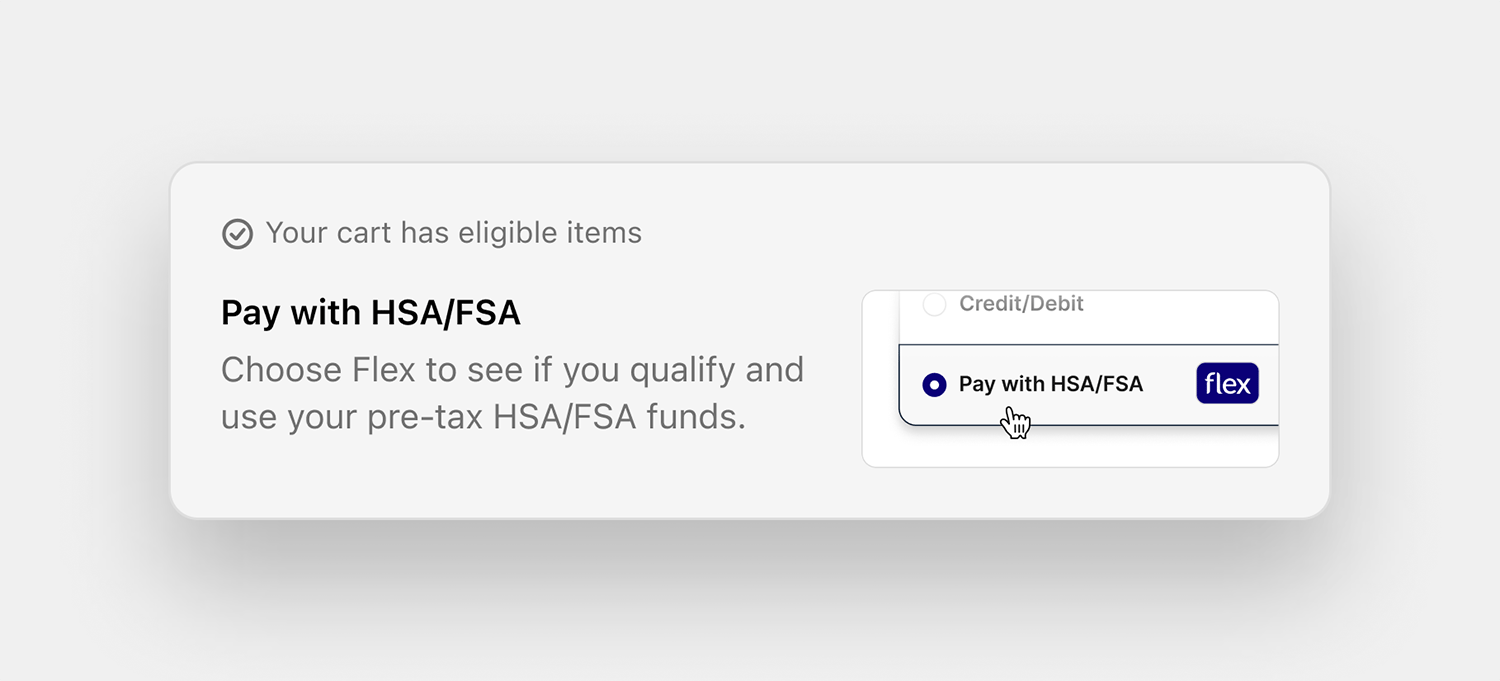
Like the cart eligibility badge, the payment card uses the eligibility metafield synced by the Flex Extensions app. Block:
Flex HSA/FSA payment card
Example:
HSA/FSA payment card displayed above Shopify checkout payment methods

Add the blocks to your checkout

Both blocks are included in the Flex Extensions app and can be added directly through Shopify’s checkout editor.
1

Open the checkout editor

In your Shopify admin, open your checkout and customer accounts editor.
2

Add the cart eligibility badge

In the Order summary section, select Add block and choose the Flex Checkout Blocks app block.
3

Add the HSA/FSA payment card

In the Payment section, select Add block and add another Flex Checkout Blocks block.
4

Enable Shop Pay

Select each block and configure its settings:
  • Include block in Shop Pay: Enable this for both blocks so they appear in Shop Pay.
  • Automatically expand sections to show app: Enable this for the payment card to help customers see the available payment options.
5

Preview and save

Preview checkout with an HSA/FSA-eligible product in your cart, then select Save.The blocks only display for qualifying products. If your preview cart contains only ineligible products, the blocks will remain hidden.

HSA/FSA payments in Shop Pay

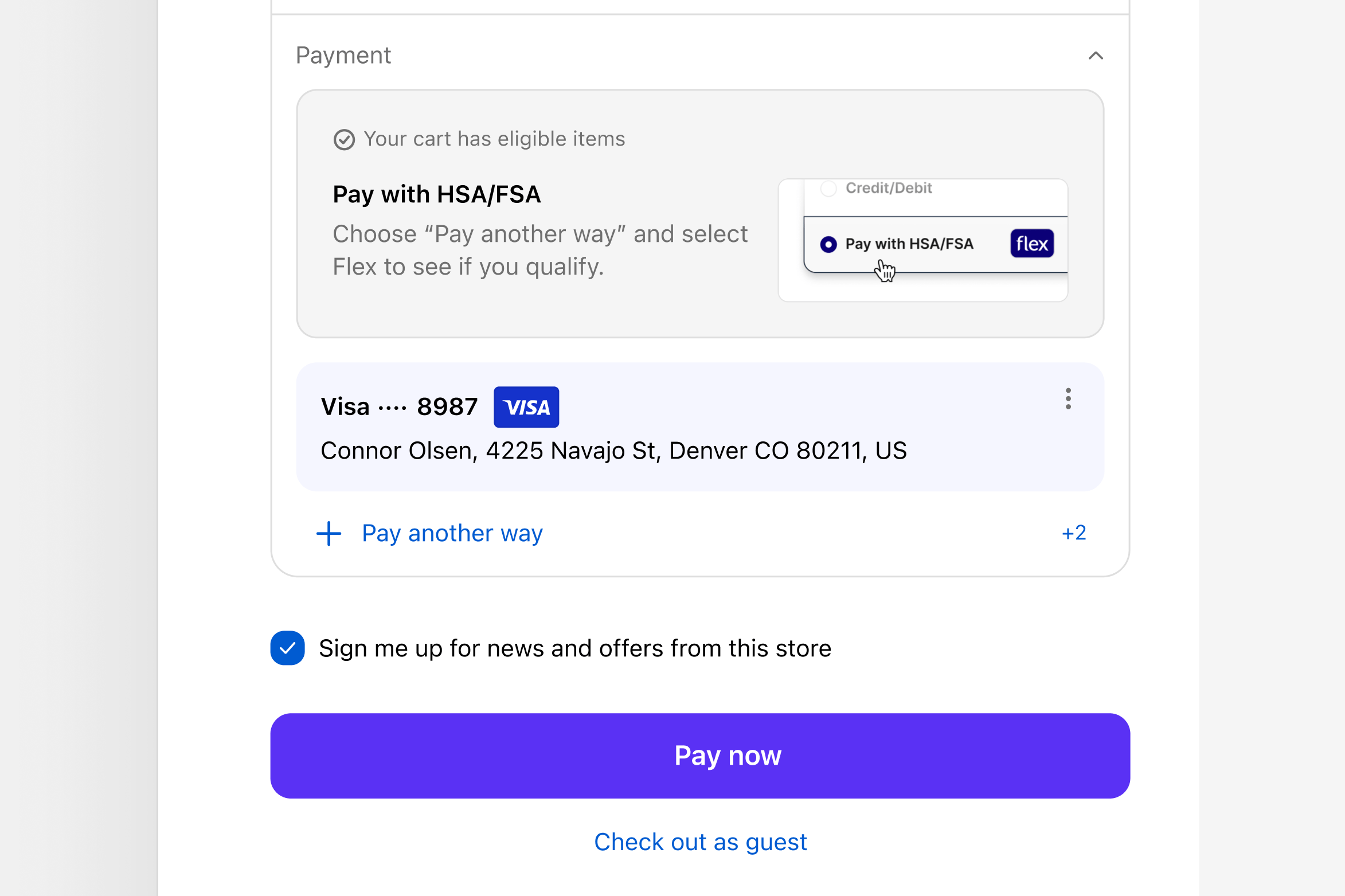
HSA/FSA payment card in Shop Pay guiding customers to choose Pay another way and select Flex
Help more customers discover and use HSA/FSA in Shop Pay. With Flex Checkout Blocks, customers can now see HSA/FSA eligibility and payment messaging directly within Shop Pay. The blocks highlight eligible products and guide customers to Flex, creating a more connected checkout experience.

How customers pay with Flex

1. Find Flex in Shop Pay The HSA/FSA payment card highlights Flex directly in Shop Pay and guides customers to select Pay another way. 2. Select Flex Customers select Flex - Pay with HSA/FSA from the available payment methods and continue through the Flex Checkout experience.
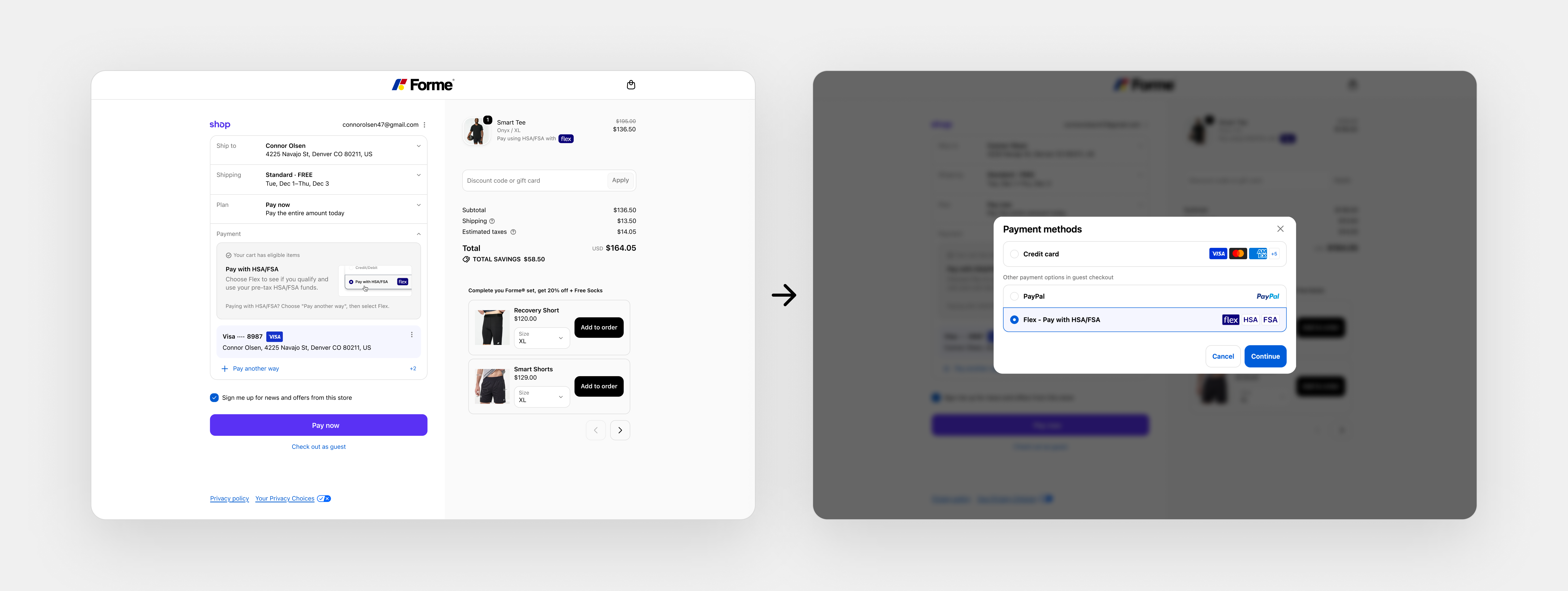
Shop Pay checkout with the Flex cart eligibility badge and HSA/FSA payment card, then the payment methods dialog with Flex - Pay with HSA/FSA selected
Together, these blocks make HSA/FSA payments more visible and easier to discover, helping more customers recognize and use their benefits at checkout.

Show Flex First at Checkout

Make Flex easier to find by displaying it first at checkout. Shopify Plus merchants can use Shopify’s Checkout Blocks app to reorder their payment methods. Use it to move Flex - Pay with HSA/FSA to the top of the list. This gives Flex greater visibility when customers choose how to pay, without requiring any custom code or changes to your Flex integration.

Move Flex to the top of checkout

  1. From your Shopify admin, open Apps → Checkout Blocks.
  2. Select Functions → Create function.
  3. Under Payment methods, select Reorder.
  4. Enter a name for your function, such as “Flex Payment Priority.”
  5. Under Reordered payment methods, select Add payment method.
  6. Manually enter Flex - Pay with HSA/FSA as the payment method name and position it first.
  7. Select Save, then change the function’s status to Active.
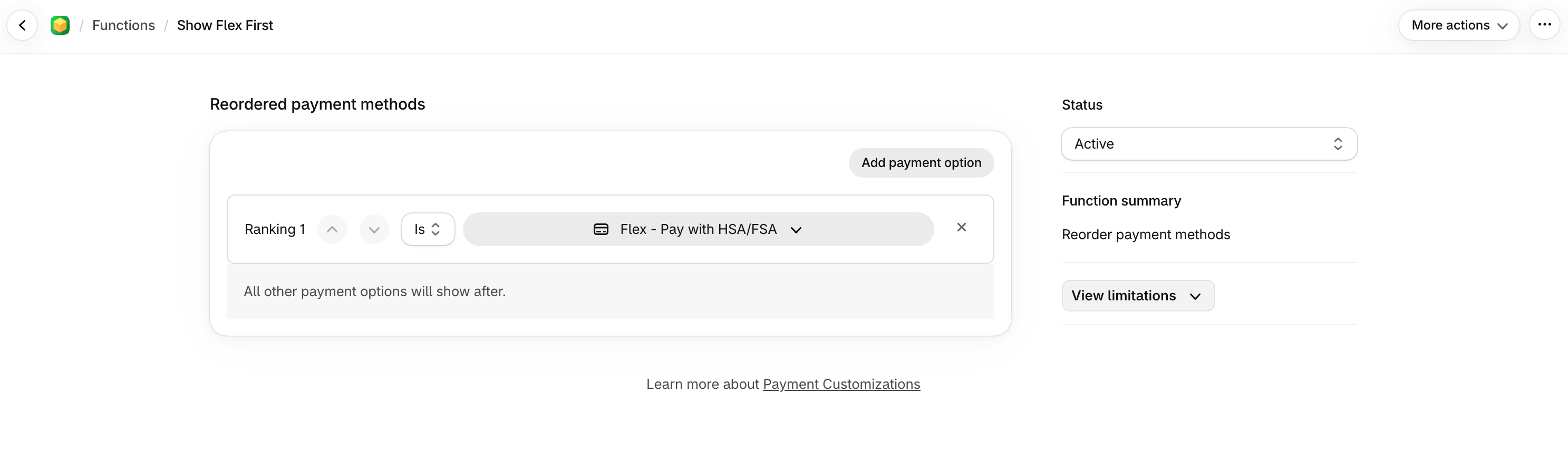
Checkout Blocks reorder function with Flex - Pay with HSA/FSA set as ranking 1 and the status set to Active
Once active, Flex will appear at the top of the payment methods in standard Shopify checkout.

What about Shop Pay?

Payment method reordering is currently limited to standard Shopify checkout. In Shop Pay, Flex will still appear in its existing position when customers select Pay another way. To improve HSA/FSA visibility in Shop Pay, we recommend enabling the Cart Eligibility Badge and HSA/FSA Payment Card described above. These blocks highlight HSA/FSA eligibility and guide customers to Flex, even when the payment method itself can’t be reordered.

Compliance

HSA/FSA eligibility messaging must follow Flex’s Compliant Marketing guidelines, including applicable disclosures. Make sure any additional HSA/FSA claims you add to your checkout are accurate and include the required disclosures.

Not on Shopify Plus?

The Flex Extensions app works with all Shopify plans. Even without Shopify Plus checkout blocks, you can promote HSA/FSA eligibility across your storefront. Use dynamic product badges, smart collections, and a dedicated HSA/FSA landing page.

Explore the Flex Extensions App