

https://mcp.withflex.com. Pick the client you use below — most paths take less than five minutes. The Claude.ai (web) flow is the most beginner-friendly; Claude Code is the best fit for developers; Cursor, Windsurf, and VS Code each have one-click install links from the Flex MCP landing page.
Claude.ai (per user)
Works on every paid Claude.ai plan (Pro, Max, Team, Enterprise) and only takes a sign-in.1
Open Claude.ai connector settings
Go to claude.ai → Settings → Connectors.
2
Add a custom connector
Click Add custom connector, then paste the Flex MCP URL:Give it a name (e.g. “Flex”) and click Add.
3
Sign in with your Flex account
Claude will open a browser window to sign in. Use the email/password (or SSO) you use for the Flex Dashboard. Approve the access prompt.
4
Try it
Back in Claude, ask:
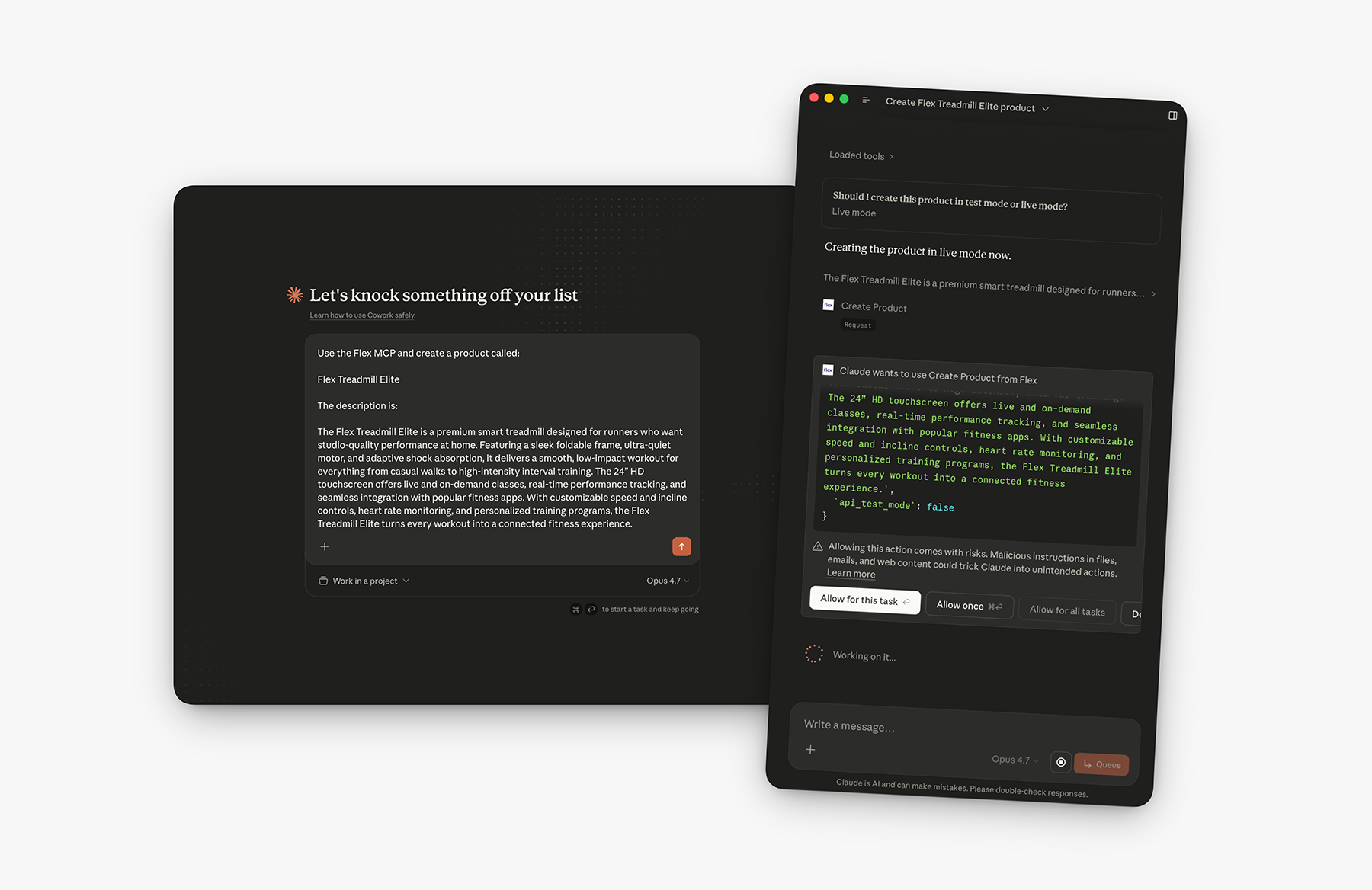
Use the Flex MCP to list my five most recent payment intents.Claude will request approval to call a Flex tool the first time. Allow it once or “for this task,” and you’re connected.
🧪 Heads up — Claude.ai is OAuth, so test vs. live mode is set per call via an
api_test_mode parameter the LLM passes to each tool. By default, read tools return live data and write tools require you to specify the mode. See Test mode for the full behavior.Claude.ai (workspace admin)
If you’re on a Team or Enterprise plan, an admin can install the Flex connector once for the whole workspace instead of asking every member to add it individually.1
Open admin Custom Connectors
Follow Anthropic’s Custom Connectors guide to find the admin connector settings.
2
Add Flex
Paste
https://mcp.withflex.com/api/mcp/oauth as the connector URL, set the name to “Flex”, and save.3
Members sign in on first use
Each workspace member will be prompted to authenticate with their own Flex login the first time they use a Flex tool — there’s no shared service account.
Claude Code
For developers using Claude Code in the terminal.- OAuth (recommended)
- API key
Run:The first time you call a Flex tool, Claude Code will open a browser to sign in. Subsequent sessions reuse the token.
Other MCP clients
The Flex MCP works with any client that supports the Model Context Protocol. For Cursor, Windsurf, VS Code, and Claude Desktop, the easiest path is to visit mcp.withflex.com — pick your client and auth method, then click the one-click install link or copy the generated config. If you’re wiring up a client we don’t list explicitly, here’s what you need:
A minimal JSON config (the shape most clients accept) looks like:
headers object with the Authorization bearer.
Tested clients: Claude.ai · Claude Desktop · Claude Code · Cursor · Windsurf · VS Code (GitHub Copilot MCP). For each of these the Flex MCP landing page generates the exact config snippet.
Next steps
Try sample prompts
Copy-paste prompts for support, reconciliation, refunds, and reporting.
Authentication & test mode
How OAuth and API keys compare, and how to stay in test mode safely.
Security best practices
Scope your API keys and rotate credentials before going live.